Step 21: SMTP Email Alerts
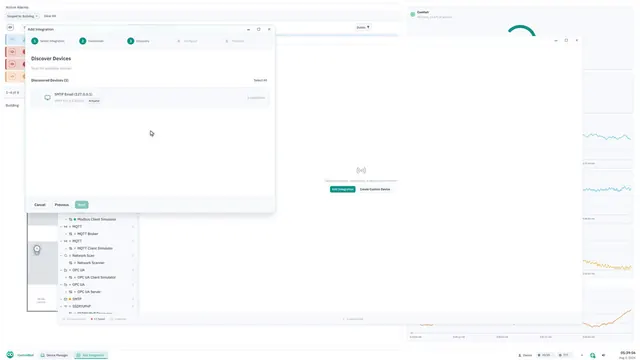
Send automated email alerts when entity values change using the SMTP service.
Full reference
For complete details, field tables, and limitations, see the SMTP & Email Alerts reference.
SMTP Protocol Service
ControlBird's SMTP service sends automated email notifications when entity values change. Use it to alert operators about critical conditions, send daily reports, or notify teams about system events.
Email Notifications
Send emails through any SMTP server when entity values change. Supports TLS/STARTTLS encryption, authentication, and customizable templates.
OAuth Attribution
When a user triggers a change, the email can be sent from their OAuth email address automatically, which helps with audit trails and personalized notifications. This is separate from connecting a Gmail or Microsoft 365 account to send through, covered below.
How It Works
The SMTP service uses the standard mapper pattern: when the watched field on the target entity changes, the mapper triggers the controller to send an email. Which field is watched depends on TargetField, covered below.
Setting Up SMTP
SMTP configuration requires three entities: a SmtpClientController, a SmtpClientEndpoint, and one or more SmtpMapper entities.
1. Create the Controller
The controller manages the overall SMTP service. Create it under your /Root/Integrations folder:
2. Configure the Endpoint
The endpoint defines your SMTP server connection. Add it as a child of the controller:
SmtpClientEndpoint
Connecting Gmail or Microsoft 365
Set AuthType to OAuth2AuthCode, or pick Gmail or Microsoft 365 as the provider in the Add Integration wizard, to send through a connected account instead of a stored password. The connection is authorized to send mail only; it cannot read the mailbox's inbox. Both providers require you to bring your own OAuth app registration (a Google Cloud project or a Microsoft Entra app) with its own client ID and secret; this is a real setup step, not a single click. See the full reference for the exact registration steps.
Register the exact redirect URI
The app registration asks for a redirect (callback) URI. Register <your platform origin>/api/oauth/endpoint/callback, character for character. A mismatch fails at Google or Microsoft before any ControlBird screen appears, which makes it the hardest failure in this flow to diagnose.
Gmail rewrites the From address
Gmail silently sends as the connected account (or a verified alias), ignoring a FromAddress that doesn't match. Set FromAddress to the mailbox you connected.
Factory restore disconnects every mailbox
A factory restore recreates the node's data directory, which takes every connected mailbox's authorization with it. Reconnect each one afterward, or its notifications will go quiet without any other warning.
Gmail App Passwords (password authentication)
Staying on AuthType = Password for Gmail? You'll need an App Password from your Google Account settings; regular passwords don't work once 2-factor authentication is enabled. Note that both Google and Microsoft are phasing out password-based SMTP entirely, so a connected account is the more durable choice.
3. Create Mappers
Each mapper watches a specific entity and sends emails when its value changes:
SmtpMapper
Notifying on an alarm
To email operators on alarm activity, set TargetEntity to the alarm and TargetField to CurrentSeverity, which is written on activation, escalation, and clear alike. The fastest way to do this is the Add email notification action in the Active Alarms app: right-click an alarm, pick an existing email integration, and both fields are set for you.
Template Variables
Use these placeholders in your subject and body templates:
Example Templates
Alert: {{entity_name}} changedValue changed to {{value}} at {{timestamp}}ControlBird: {{entity_name}} Update<h2>Value Update</h2>
<p>Entity: <strong>{{entity_name}}</strong></p>
<p>New Value: <code>{{value}}</code></p>
<p><small>{{timestamp}}</small></p>OAuth Email Integration
When UseWriterEmailIfAvailable is enabled on the endpoint, the SMTP service can send emails from the OAuth user's email address instead of the default FromAddress.
How It Works
An OAuth-authenticated user modifies an entity value
The service records which user made the change
The service checks whether that user signed in through OAuth (OpenID Connect)
For an OAuth user, their email address becomes the From address
Fallback Behavior
If the author is not an OAuth user, has no OAuth email address set, or UseWriterEmailIfAvailable is disabled, the endpoint's default FromAddress is used instead.
Rate Limiting
Use the CooldownMs field to prevent email floods. When set, the mapper will skip sending emails if one was sent within the cooldown period.
Runtime Statistics
Each mapper tracks statistics that you can monitor:
Common SMTP Configurations
Gmail
Microsoft 365
Amazon SES
Troubleshooting
Emails not being sent
- Check endpoint config: Verify Host, Port, and Security match your SMTP server
- Check credentials: Username and Password must be valid
- Check FromAddress: Must be a valid email format
- Check mapper Recipients: At least one valid recipient required
- Check service logs: Look for SMTP errors in cb-smtp logs
Authentication failed
- Gmail: Use an App Password, not your regular password
- Office 365: May need to enable SMTP AUTH in admin settings
- Check username format: Some servers require full email address
Emails going to spam
- SPF/DKIM: Configure DNS records for your sending domain
- FromAddress: Use a real, verified email address
- Content: Avoid spam trigger words in subject/body
OAuth email not being used
- Check endpoint setting: UseWriterEmailIfAvailable must be true
- Check the user's sign-in method: the user must have signed in through OAuth (OpenID Connect)
- Check the user's email address: the OAuth account must have an email address on file
Walkthrough Complete!
You now have a complete ControlBird deployment with devices connected, automations running, monitoring configured, access controlled, custom scripts, professional dashboards, safe version upgrades, fault tolerance, and email notifications.
What's Next?
You've completed the full walkthrough! Here are some advanced topics to explore:
- Faceplate Builder: Create custom device control panels with graphics
- Schematic Builder: Design P&ID diagrams linked to live data
- Certificate Management: Configure TLS for secure device connections
- Config Manager: Version control your entire configuration
Keep Building
ControlBird grows with your needs. Start with what you've learned, then expand as your automation requirements evolve. Every device you connect, every automation you build, and every notification you configure makes your system more capable.