Step 10: Monitor Alarms
Respond to alerts and manage alarm states with the Active Alarms app.
Full reference
For complete details, field tables, and limitations, see the Alarms reference.
Why Alarms Matter
Automations run silently in the background, but sometimes you need to be notified when something requires attention. Alarms are how ControlBird tells you "Hey, look at this!"
The Active Alarms app shows all currently triggered alerts in one place, with tools to acknowledge, investigate, and resolve them.
Opening Active Alarms
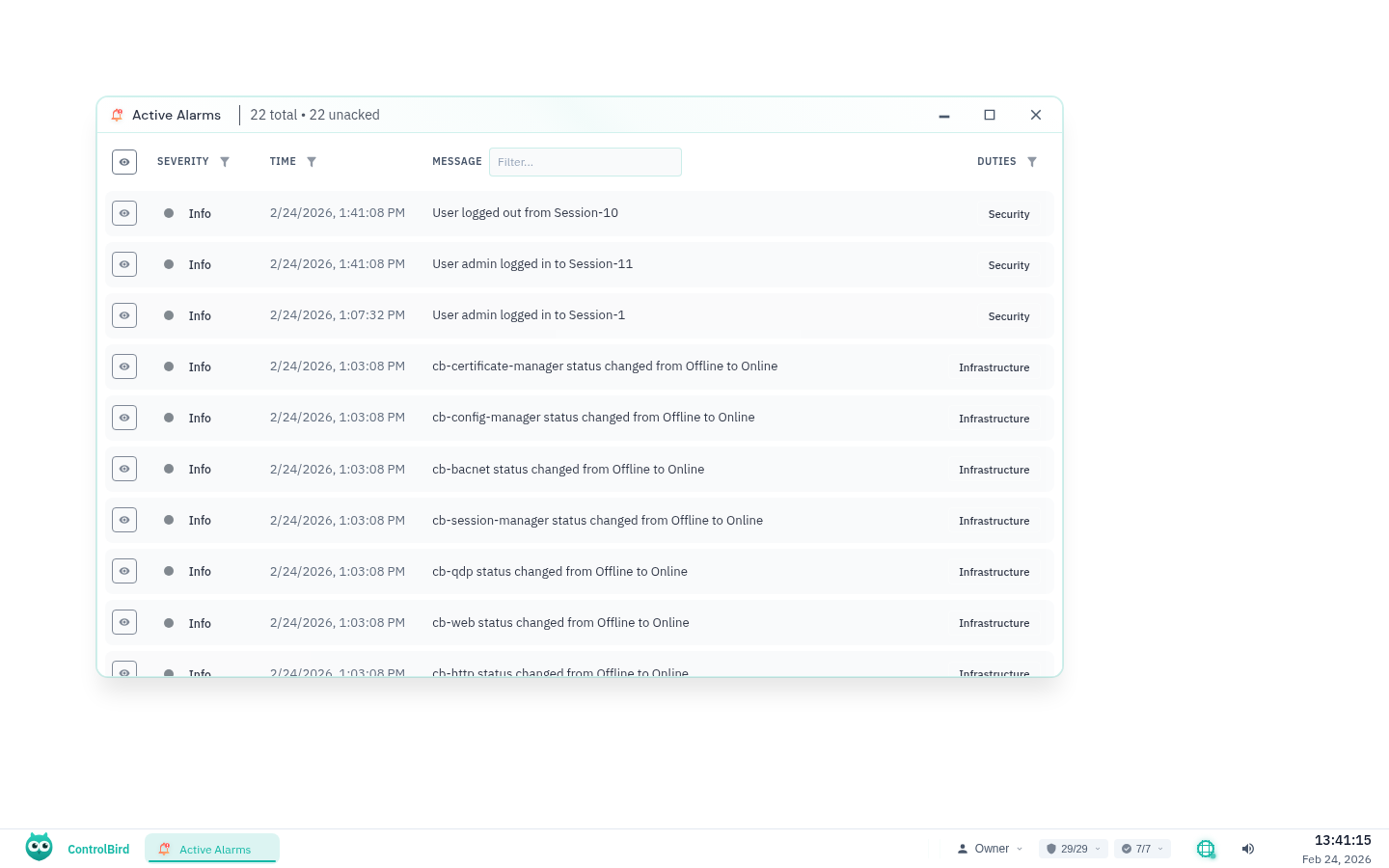
Click the ControlBird logo in the taskbar and select Active Alarms. You'll see a table of all currently active alarms, sorted by time (newest first).
Understanding Alarm Severity
Alarms have different severity levels, indicated by color and icon. This helps you prioritize what needs attention first.
Visual Feedback
Unacknowledged critical alarms may flash or pulse to draw attention. Once acknowledged, they remain visible but stop flashing.
Alarm Table Columns
The alarm table shows key information at a glance:
| Column | Description |
|---|---|
| Ack | Click the eye icon to acknowledge. Shows checkmark when acknowledged. |
| Severity | Alarm priority with icon and label (Critical, High, Medium, Low) |
| Time | When the alarm was triggered |
| Message | Description of what triggered the alarm |
| Duties | Who is responsible for handling this alarm (if configured) |
Acknowledging Alarms
When you see an alarm, the first step is usually to acknowledge it. This tells the system "I've seen this and I'm handling it."
Click the eye icon in the Ack column to acknowledge one alarm.
Click the eye icon in the header row to acknowledge all visible alarms at once.
Acknowledging an alarm doesn't clear it. The alarm remains visible until the underlying condition is resolved.
Filtering Alarms
When you have many alarms, filters help you focus on what matters:
Click the filter icon on the Severity column to show only certain levels.
Click the filter icon on Time to see alarms from a specific period.
Type in the search box to find alarms containing specific text.
Filter to see only alarms assigned to your responsibilities.
Active filters appear as chips above the table. Click the × on a chip to remove that filter, or click "Clear All" to reset.
Context Menu Actions
Right-click any alarm row to access additional actions:
Shelving Alarms
Sometimes an alarm is expected or you're already aware of the issue. Shelving temporarily hides the alarm for a set duration:
- Right-click the alarm and select Shelve
- Choose a duration (15 minutes to 24 hours)
- Optionally add a reason (e.g., "Maintenance in progress")
- Click Shelve to confirm
Shelved alarms appear dimmed and won't trigger notifications. After the duration expires, they become visible again if still active.
Use Shelving Wisely
Shelving is for temporary situations. Don't shelve alarms indefinitely to avoid dealing with them: this defeats the purpose of monitoring.
Alarm History
Want to see if this alarm has happened before? Right-click and select See Alarm History. You can search by:
- Exact (by Id): See all occurrences of this specific alarm entity
- Similar (by Name): See alarms with the same name from any entity
This opens the Alarm History app with pre-applied filters, showing past events, when they cleared, and who acknowledged them.
Triggering Alarms
Alarms are typically triggered through Rule Chain automations. A basic alarm setup:
You can configure alarm properties on individual alarm entities:
- Severity: Which severity level to use
- Display Text: Custom message shown in the alarm table
- Latching: Whether the alarm requires manual reset
- Responsibilities: Who should see this alarm
Alarms Config App
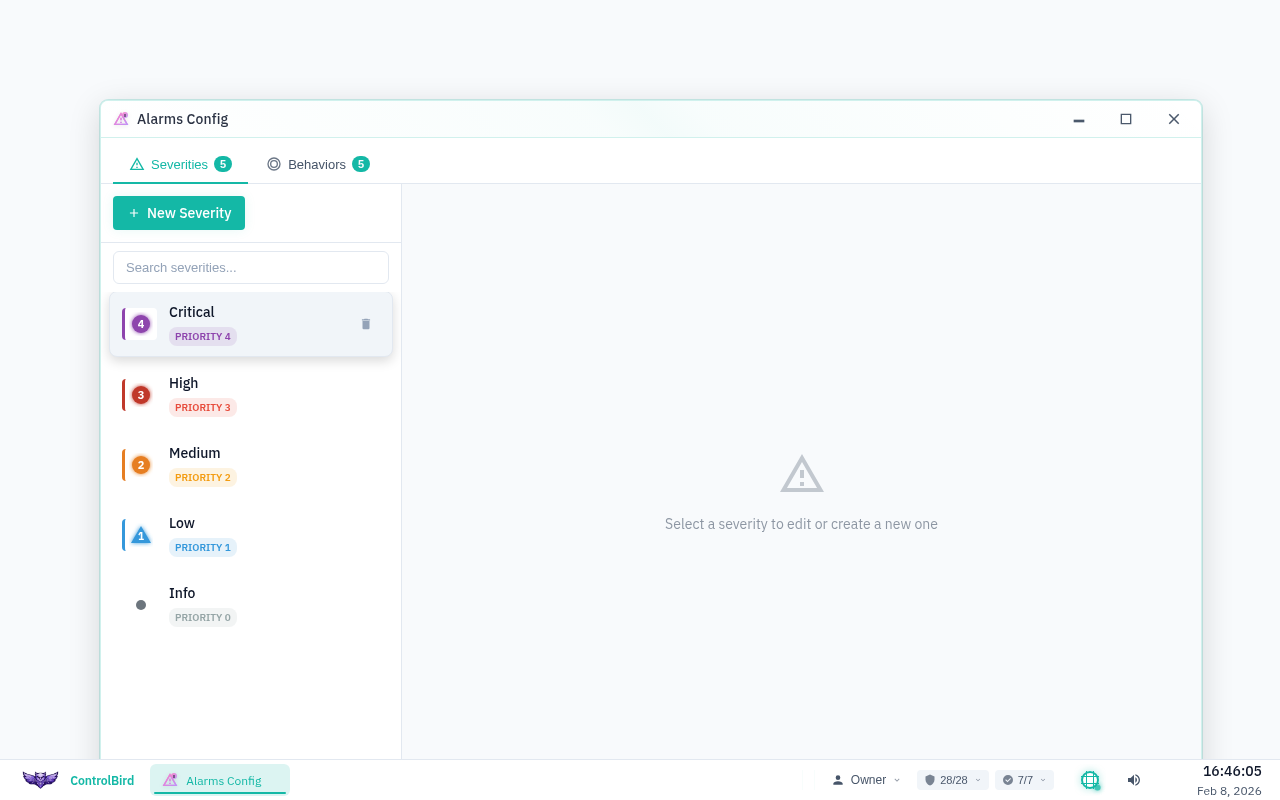
For system-wide alarm configuration, use the Alarms Config app. This dedicated tool lets you manage severity levels and alarm behaviors that apply across your entire system.
Open Alarms Config from the app launcher (click the ControlBird logo → Alarms Config).
Configuring Severities
The Severities tab lets you define alarm priority levels. Each severity includes visual styling that helps operators quickly identify alarm importance.
Live Preview
The Alarms Config app includes a live preview panel. As you adjust colors and symbols, you'll see exactly how alarms will appear in the Active Alarms display.
Configuring Behaviors
The Behaviors tab defines how alarms respond to field changes. Behaviors can be assigned to multiple alarm entities for consistent handling.
Status == 'Critical' ? 'Critical' : Status == 'Warning' ? 'High' : 'Info'Troubleshooting
I acknowledged an alarm but it's still there
Acknowledging doesn't clear an alarm. The alarm remains visible until the condition that triggered it is resolved. Once the condition clears (e.g., temperature drops back to normal), the alarm will automatically disappear.
An alarm keeps coming back
Check these common causes:
- Threshold issues: The value is hovering near the alarm threshold
- No hysteresis: Add dead-band logic to prevent rapid on/off cycling
- Underlying problem: The condition causing the alarm hasn't been fixed
I don't see an alarm I expected
- Check filters: You may have filters hiding the alarm
- Check responsibilities: The alarm may be assigned to different duties
- Check rule chain: Verify the automation is compiled and running
- Check thresholds: The value may not have exceeded the trigger point