Step 19: Configuration Management
Version-control your schemas and entity tree with git-like branching, validation, and deployment.
Full reference
For complete details, field tables, and limitations, see the Configuration Management reference.
The Config Manager
ControlBird's configuration lives in two places: schemas that define entity types (fields, inheritance, behaviors) and the entity tree that defines the initial hierarchy of entities. The Config Manager app gives you version-controlled editing of these configuration files with branching, validation, and safe deployment.
Schemas
config/schemas/
Define entity types with fields, data types, inheritance, and validation rules. A Pump schema might inherit from ProtocolMapper and add fields like FlowRate and Pressure.
Entity Tree
config/tree/
Define the initial entity hierarchy with parent-child relationships and default field values. Organize entities into logical folders like Sites, Equipment, or Controllers.
A templating-friendly format
Configuration files use a templating format that extends JSON with variables, functions, and imports. This lets you define reusable patterns and reduce duplication across your configuration.
Opening the Config Manager
Click the ControlBird logo in the taskbar and select Config Manager. The app opens with a familiar IDE-like interface:
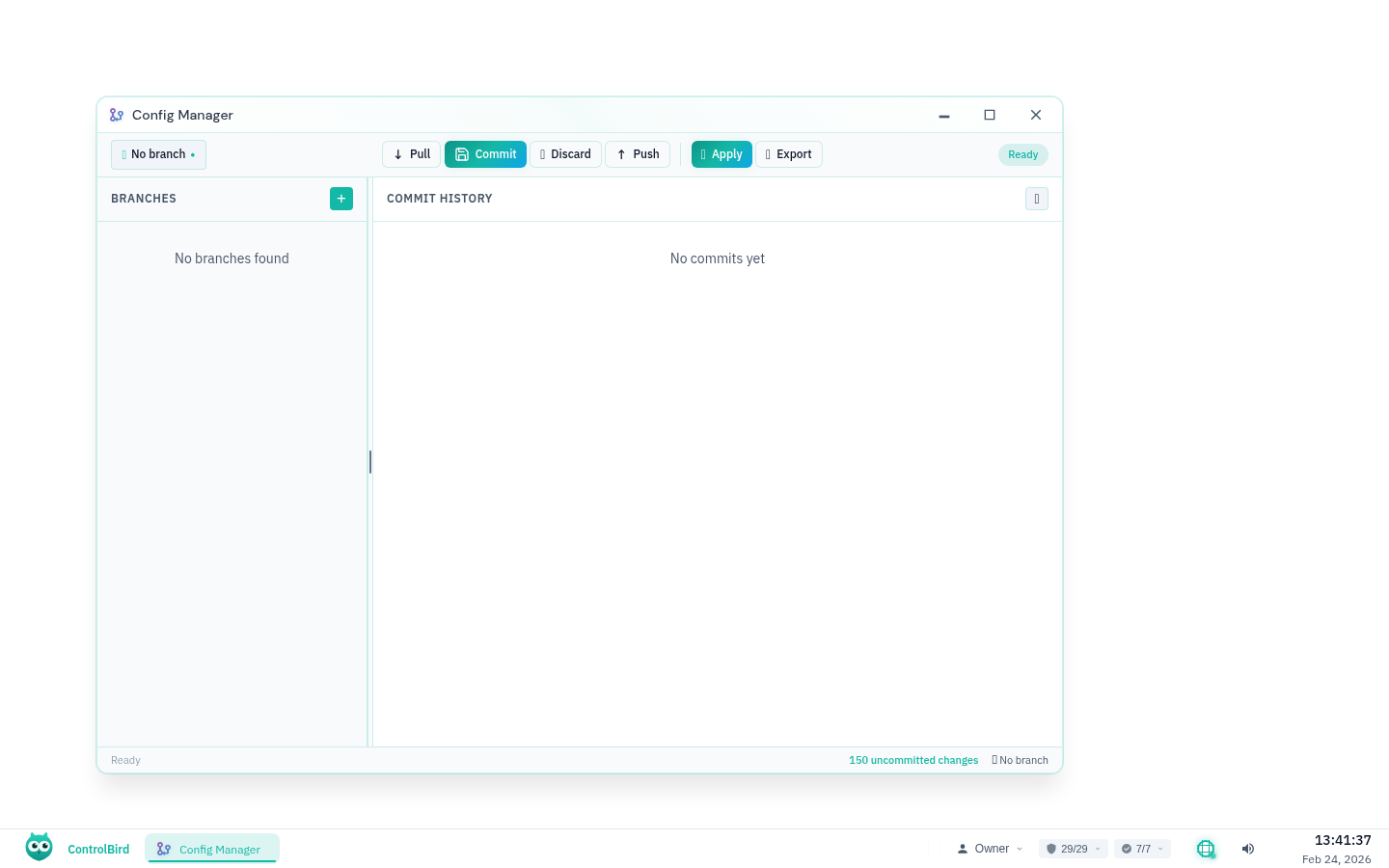
Git-Like Branching
Configuration changes are managed with git-like branching. This lets you experiment with changes safely before applying them to the live system.
Click the branch dropdown and select New Branch. Give it a descriptive name like add-pump-schema or reorganize-tree.
Edit files in the file tree. Modified files show a yellow indicator, new files show green, and deleted files show red.
Click Validate to check your changes. The Problems panel shows errors (must fix) and warnings (should review).
Click Apply to Live to see a diff of what will change in the running system, then confirm to deploy.
Change Tracking
The Changes sidebar shows all uncommitted modifications in your current branch:
Click any changed file to open a side-by-side diff view comparing your changes with the original version:
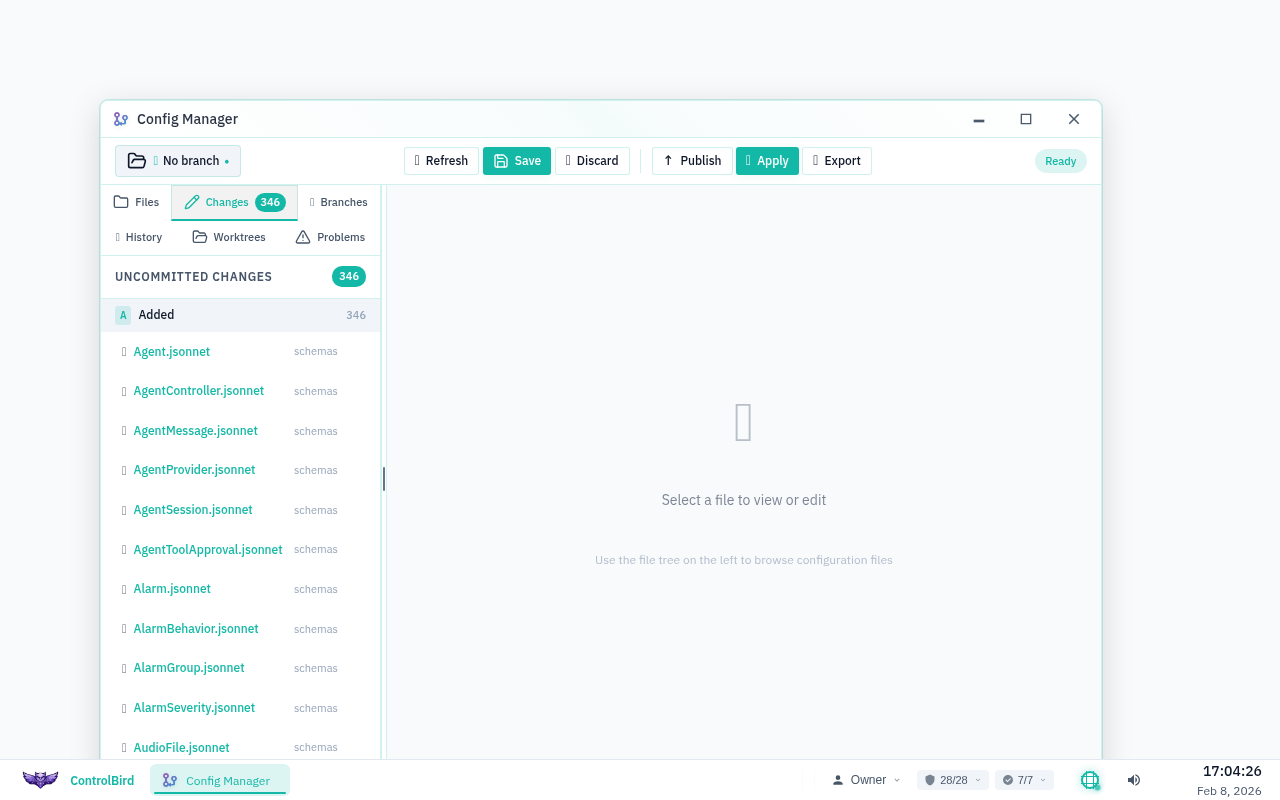
Validation & Problems
Before applying changes, always validate your configuration. The Config Manager checks:
- Syntax errors: Invalid configuration syntax
- Schema violations: Unknown field types, invalid inheritance
- Reference errors: Entity references to non-existent paths
- Circular dependencies: Schema inheritance cycles
Fix Before Apply
You cannot apply configuration with errors. Warnings are allowed but should be reviewed, since they often indicate configuration that won't work as expected.
Applying Changes to Live
When your branch is ready, click Apply to Live to deploy the changes to the running ControlBird store. This process:
- Validates all configuration files
- Generates a detailed change report showing what will be added, modified, or removed
- Asks for confirmation before proceeding
- Applies changes atomically: all succeed or all fail
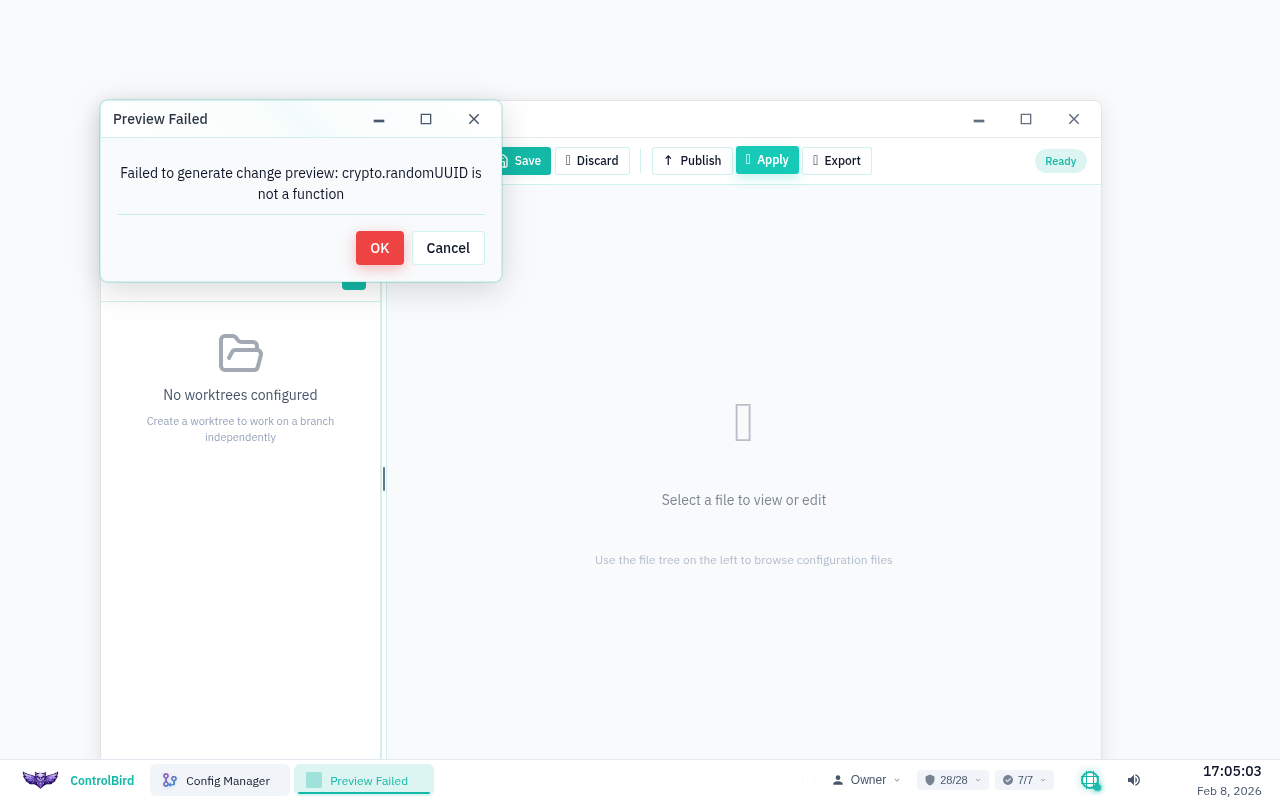
Exporting from Live
Sometimes you make changes directly in the ControlBird UI (adding entities, modifying fields) and want to capture them in configuration files. The Export from Live feature does this:
This is useful for:
- Capturing UI-driven changes in version control
- Creating a baseline configuration from a running system
- Migrating configuration between environments
Worktrees for Parallel Work
Need to work on multiple changes simultaneously? Worktrees let different users or sessions work on separate branches without conflicts:
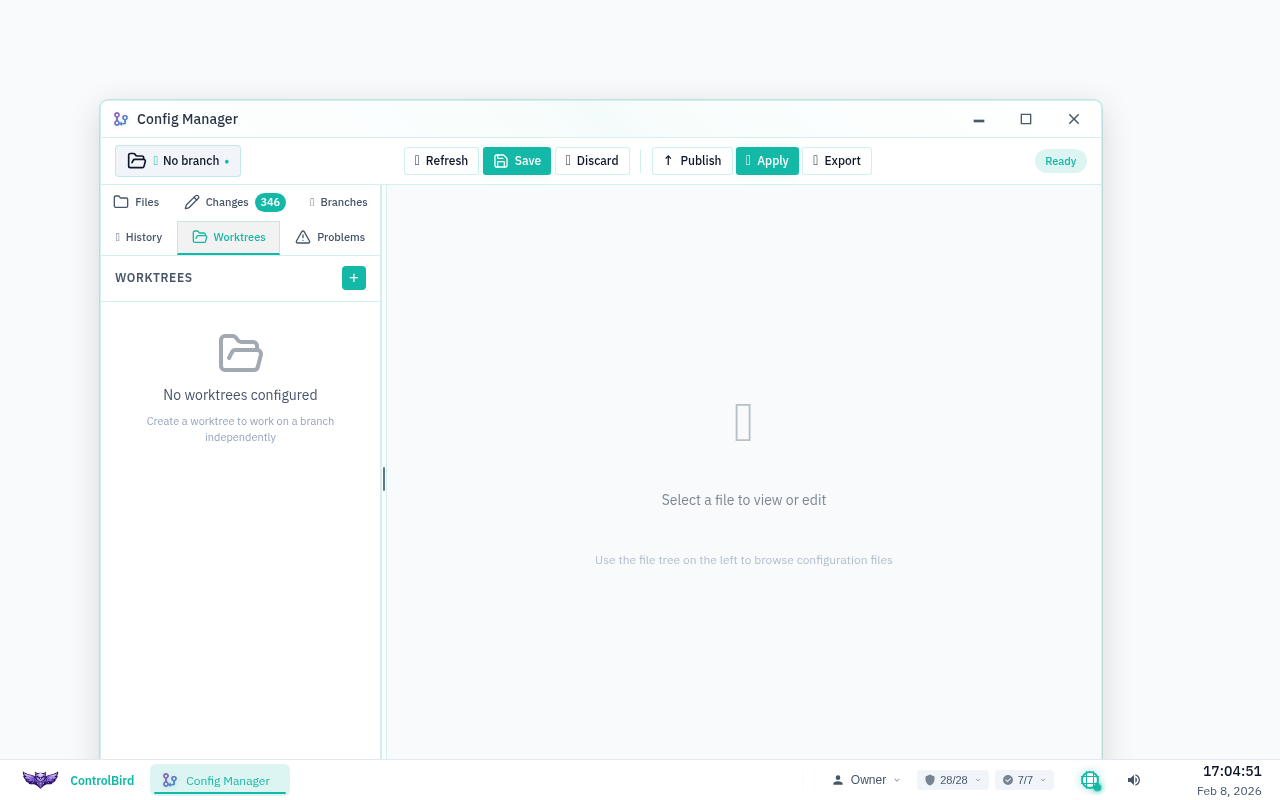
Worktrees are automatically created when you switch branches while another session is active. The Worktrees sidebar shows all active workspaces and lets you clean up stale ones.
Commit History
The History sidebar shows all previous commits on the current branch. You can see who made changes, when, and what was modified:
Best Practices
Name branches after the change: add-hvac-schema, fix-sensor-inheritance
Always run validation and review the change report before deploying to live
Make small, related changes in each branch rather than large mixed updates
Apply changes to a dev node before production when possible
Troubleshooting
Changes not appearing after apply
- Check the status bar: Make sure the apply completed successfully
- Refresh the browser: Some UI elements may need a refresh to reflect changes
- Check validation: Warnings might indicate why changes aren't working
Branch conflicts when merging
If two branches modified the same file, you'll see a merge conflict. The editor highlights conflicting sections so you can choose which version to keep or combine them manually.
"Config Controller offline" error
- Check the Config Controller service: It may need to be restarted
- Verify permissions: You need
app.config-managerpermission - Check node status: The node must be running and accessible
How do I revert a bad apply?
Configuration is applied atomically but doesn't have automatic rollback. To revert:
- Check commit history for the previous good configuration
- Create a new branch from that commit
- Apply the known-good configuration