Step 3: Deploy a Node
Launch your first ControlBird instance in the cloud.
Full reference
For complete details, field tables, and limitations, see the Cloud Management reference.
What is a Node?
A node is a running instance of ControlBird: your personal hub for connecting and managing devices. Each node provides:
- Device Connections: Built-in support for Modbus, MQTT, OPC UA, DNP3, and more
- Real-time Data: See device values update instantly as they change
- Visual Interface: A desktop-style UI that's easy to navigate
- Custom Integrations: APIs to connect with your own apps and dashboards
Understanding Subscription Tiers
Choose a tier based on your workload size and performance requirements:
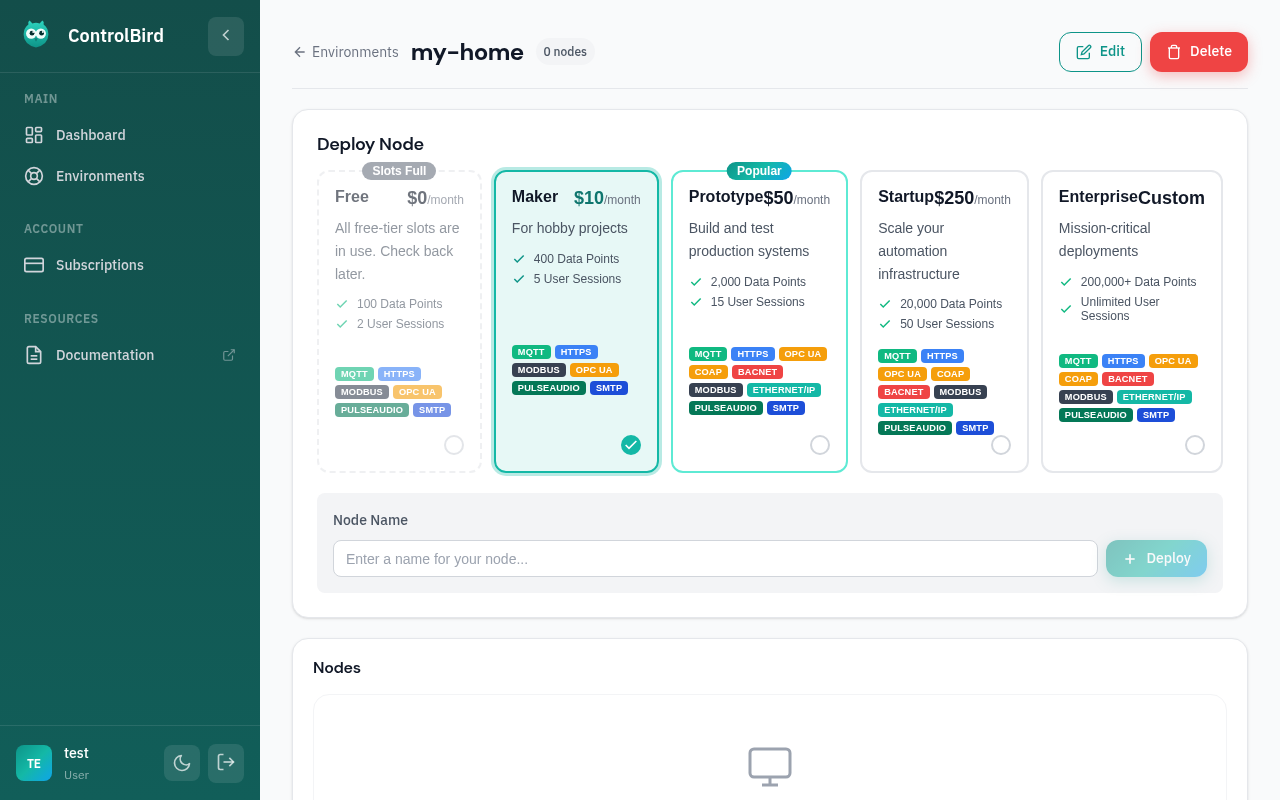
Tier Comparison
| Tier | Price | Best For | Key Features |
|---|---|---|---|
| Starter | $20/mo | Small IoT deployments, hobbyists | 400 data points, 5 sessions, standard support |
| Pro | $100/mo | Production IoT systems | 5,000 data points, 25 sessions, all protocols, priority support |
| Enterprise | Custom | Large-scale deployments | 200,000+ data points, unlimited sessions, dedicated support, custom SLA |
Start with Starter
The Starter tier at $20/mo includes all core platform features. It's a good way to test ControlBird with your actual devices before scaling up to Pro.
Selecting a Tier
For this walkthrough, select the Starter tier. You can upgrade to a higher tier anytime as your needs grow.
Deploying Your Node
After selecting a tier, configure your node's identity:
| Field | Description | Example |
|---|---|---|
| Node Name | A unique, memorable identifier | my-home-hub, greenhouse-01 |
| Region | Deployment location (affects latency) | US East, EU West, Asia Pacific |
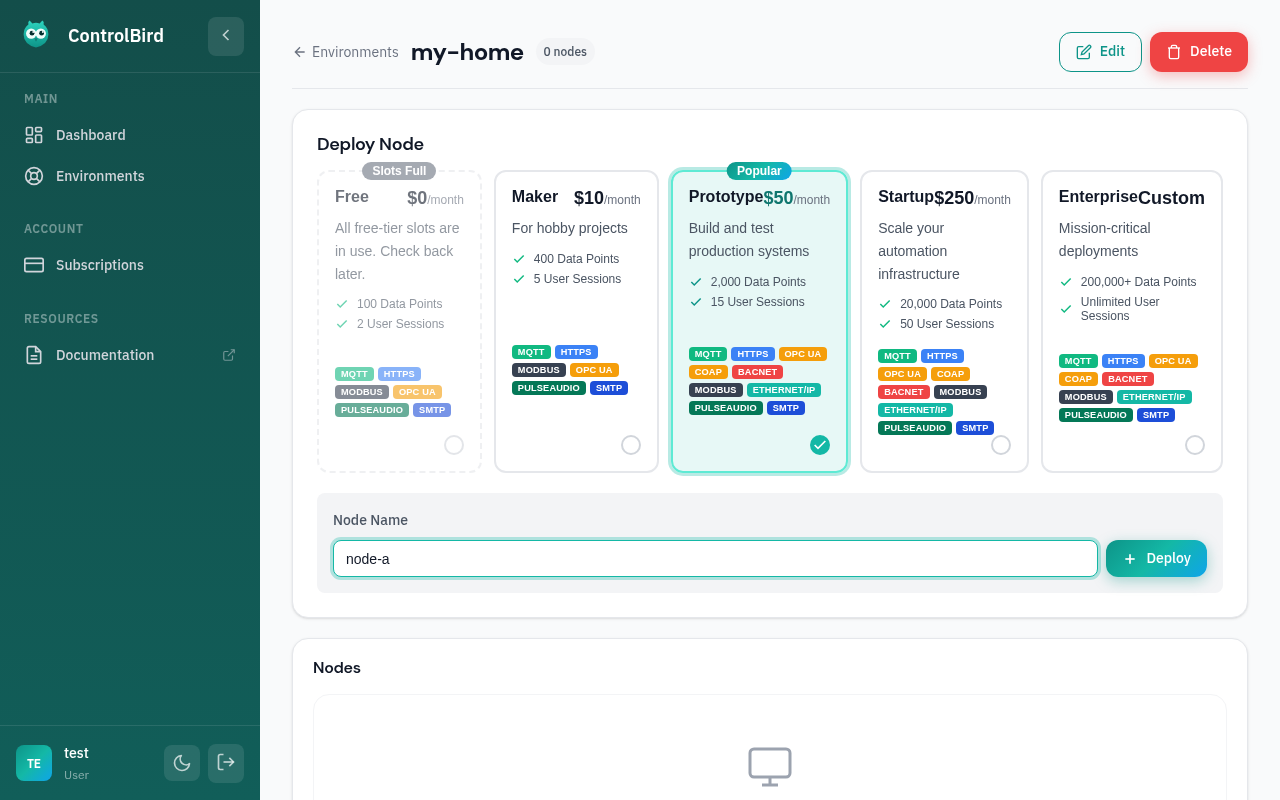
Deployment Progress
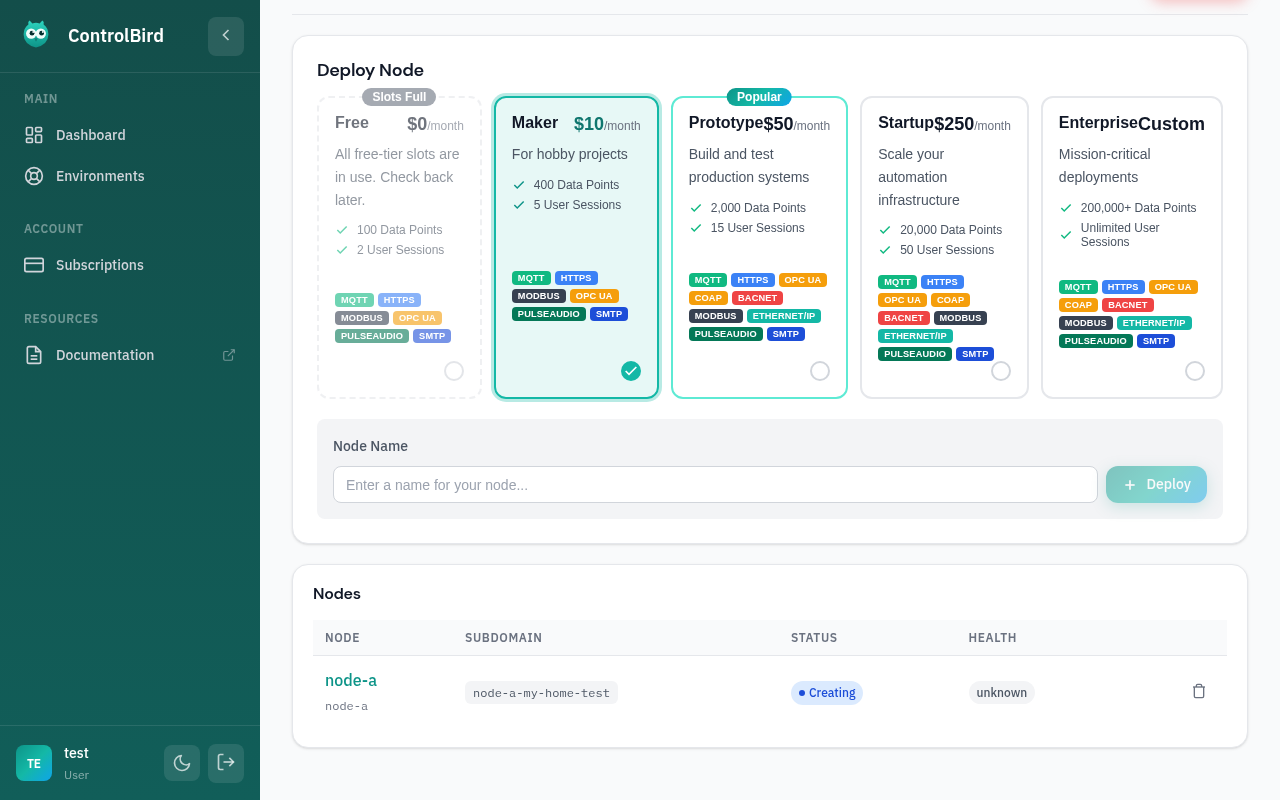
After clicking "Deploy", watch as your node is provisioned:
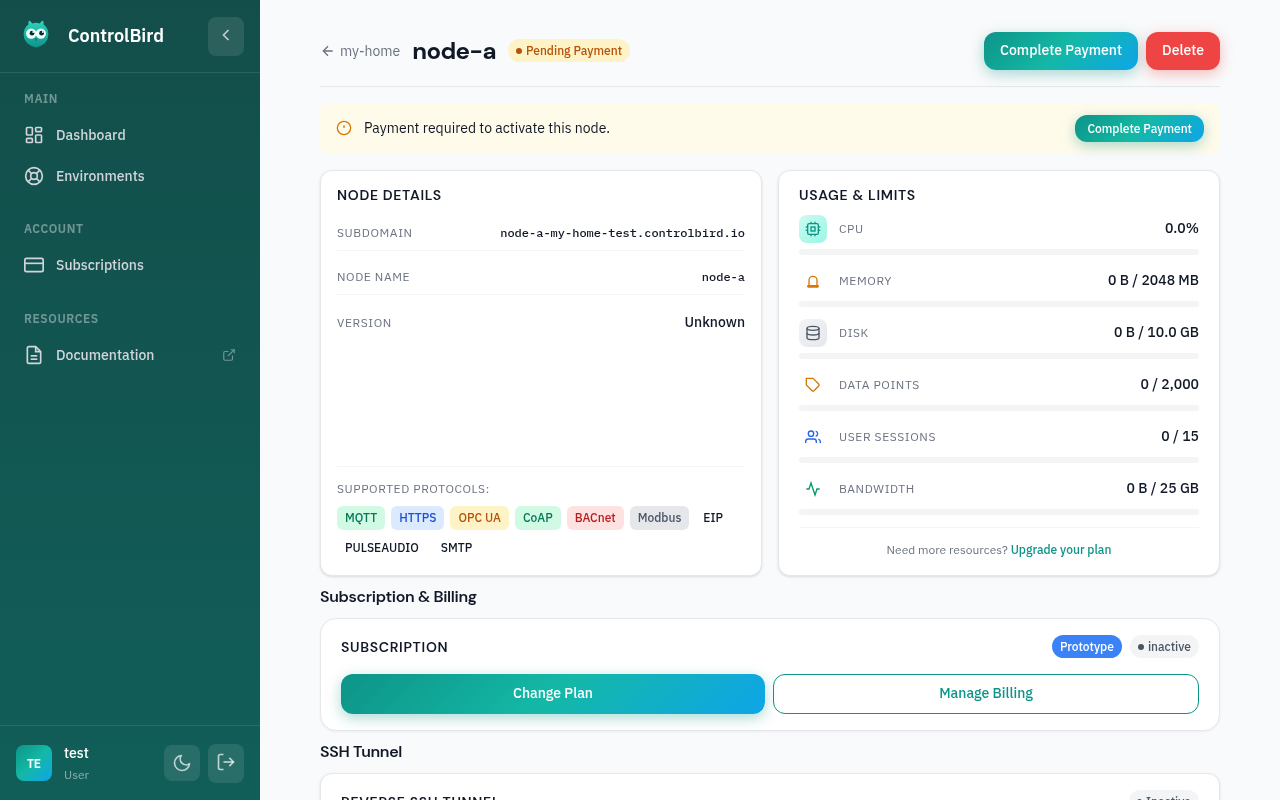
What Happens Next
When your node starts, ControlBird automatically sets up everything you need to start connecting devices. Your configuration is saved automatically, so you won't lose anything if you need to restart.
Troubleshooting
My node is stuck on "Creating"
Node creation can sometimes take a bit longer during high demand periods. If your node has been creating for more than 5-10 minutes:
- Refresh the page to get the latest status
- Check the system status page for any ongoing issues
- Try deploying in a different region
Node shows "Error" status
If your node failed to start:
- Click on the node to see detailed error information
- Try deleting and recreating the node
- If the problem persists, contact support with your node ID
Which tier should I choose?
Start with the Starter tier at $20/mo: it includes all core features and is great for getting started. You can upgrade to Pro anytime as your needs grow. The main differences between tiers are data point limits, session counts, and support levels.