Step 7: Connect Your First Device
Bridge your local network to ControlBird and bring live device data into the cloud.
Full reference
For complete details, field tables, and limitations, see the Device Manager reference.
The Network Challenge
Your ControlBird node runs in the cloud, but your devices (thermostats, PLCs, sensors) are on your local network. The cloud can't directly reach 192.168.1.100: that address only exists inside your home or facility.
192.168.1.100192.168.1.101192.168.1.102node.example.comTo bridge this gap, you'll create a reverse SSH tunnel from your local network to your cloud node. This tunnel makes your local devices appear as if they're directly connected to the node.
Understanding Device Connections
Connecting a device in ControlBird involves three parts:
localhost since the tunnel makes devices appear local to the node. Step 1: Enable SSH Tunnel on Your Node
First, enable the SSH tunnel feature on your node. Go to the Control Plane Dashboard and select your node.
Enable the Tunnel
In the node settings, locate the SSH Tunnel section and click Enable. This provisions:
- A TLS certificate for secure connections
- An SSH endpoint at
ssh-{your-node}.controlbird.io - An authentication token for tunnel connections
Works on Restrictive Networks
The tunnel connects over port 443 using TLS, so it works even on networks that block SSH port 22: to the network it looks like normal HTTPS traffic.
Copy Your Connection Details
After enabling, you'll see your tunnel credentials:
ssh-mynode-network-user.controlbird.io443controlbird••••••••••••••••Step 2: Establish the Tunnel
From a computer or gateway device on your local network, establish the SSH tunnel. This creates reverse port forwards that expose your local devices to the cloud node.
Docker Tunnel (Recommended)
The easiest way to set up a persistent, auto-reconnecting tunnel is with the controlbird/tunnel Docker image. One command is all you need:
docker run -d --restart always \
  --name controlbird-tunnel \
  -e SSH_HOST=ssh-mynode-network-user.controlbird.io \
  -e SSH_PASSWORD=your-token-here \
  -e TUNNELS=R:502:192.168.1.100:502 \
  controlbird/tunnel
Understanding the TUNNELS Variable
Each entry in TUNNELS follows the format direction:nodePort:deviceHost:devicePort.R: prefix = reverse tunnel (expose a local device to the cloud)L: prefix = forward tunnel (access a cloud service from local)
Separate multiple forwards with commas.
Forwarding Multiple Devices
List additional forwards in the TUNNELS variable, separated by commas:
docker run -d --restart always \
  --name controlbird-tunnel \
  -e SSH_HOST=ssh-mynode-network-user.controlbird.io \
  -e SSH_PASSWORD=your-token-here \
  -e TUNNELS=R:502:192.168.1.100:502,R:503:192.168.1.101:502,R:1883:192.168.1.50:1883 \
  controlbird/tunnel
| Node Port | Local Device | Protocol |
|---|---|---|
502 | 192.168.1.100:502 | Modbus (Thermostat) |
503 | 192.168.1.101:502 | Modbus (PLC) |
1883 | 192.168.1.50:1883 | MQTT Broker |
Docker Compose
If you prefer Docker Compose, add this to your docker-compose.yml:
services:
  tunnel:
    image: controlbird/tunnel
    restart: always
    environment:
      SSH_HOST: ssh-mynode-network-user.controlbird.io
      SSH_PASSWORD: your-token-here
      TUNNELS: R:502:192.168.1.100:502,R:1883:192.168.1.50:1883
Gateway Devices
The Docker tunnel is ideal for Raspberry Pi, NAS, or any gateway device on your network. A single docker run command gives you a persistent, auto-reconnecting tunnel with no extra configuration: no sshpass, openssl, or systemd setup required.
Advanced: Manual SSH Commands
If Docker is not available, you can establish the tunnel with raw SSH commands.
Basic Tunnel Command
Open a terminal and run:
ssh -o "ProxyCommand=openssl s_client -connect ssh-mynode-network-user.controlbird.io:443 -servername ssh-mynode-network-user.controlbird.io -quiet" \
    -R 502:192.168.1.100:502 \
    controlbird@localhost
When prompted, paste your authentication token as the password.
Understanding the Command
-o "ProxyCommand=...": routes SSH through TLS on port 443-R 502:192.168.1.100:502: forwards port 502 on the node to your local Modbus devicecontrolbird@localhost: the tunnel user (localhost because we're proxying)
Forwarding Multiple Devices
Add multiple -R flags to forward several devices through one tunnel:
ssh -o "ProxyCommand=openssl s_client -connect ssh-mynode-network-user.controlbird.io:443 -servername ssh-mynode-network-user.controlbird.io -quiet" \
    -R 502:192.168.1.100:502 \
    -R 503:192.168.1.101:502 \
    -R 1883:192.168.1.50:1883 \
    controlbird@localhost
Running as a Persistent Service (systemd)
For production use without Docker, run the tunnel as a systemd service that reconnects automatically:
# /etc/systemd/system/controlbird-tunnel.service
[Unit]
Description=ControlBird SSH Tunnel
After=network.target

[Service]
Type=simple
Restart=always
RestartSec=10
ExecStart=/usr/bin/ssh -N -o "ExitOnForwardFailure=yes" \
    -o "ProxyCommand=openssl s_client -connect ssh-mynode-network-user.controlbird.io:443 -servername ssh-mynode-network-user.controlbird.io -quiet" \
    -R 502:192.168.1.100:502 \
    controlbird@localhost

[Install]
WantedBy=multi-user.target
Step 3: Open the Device Manager
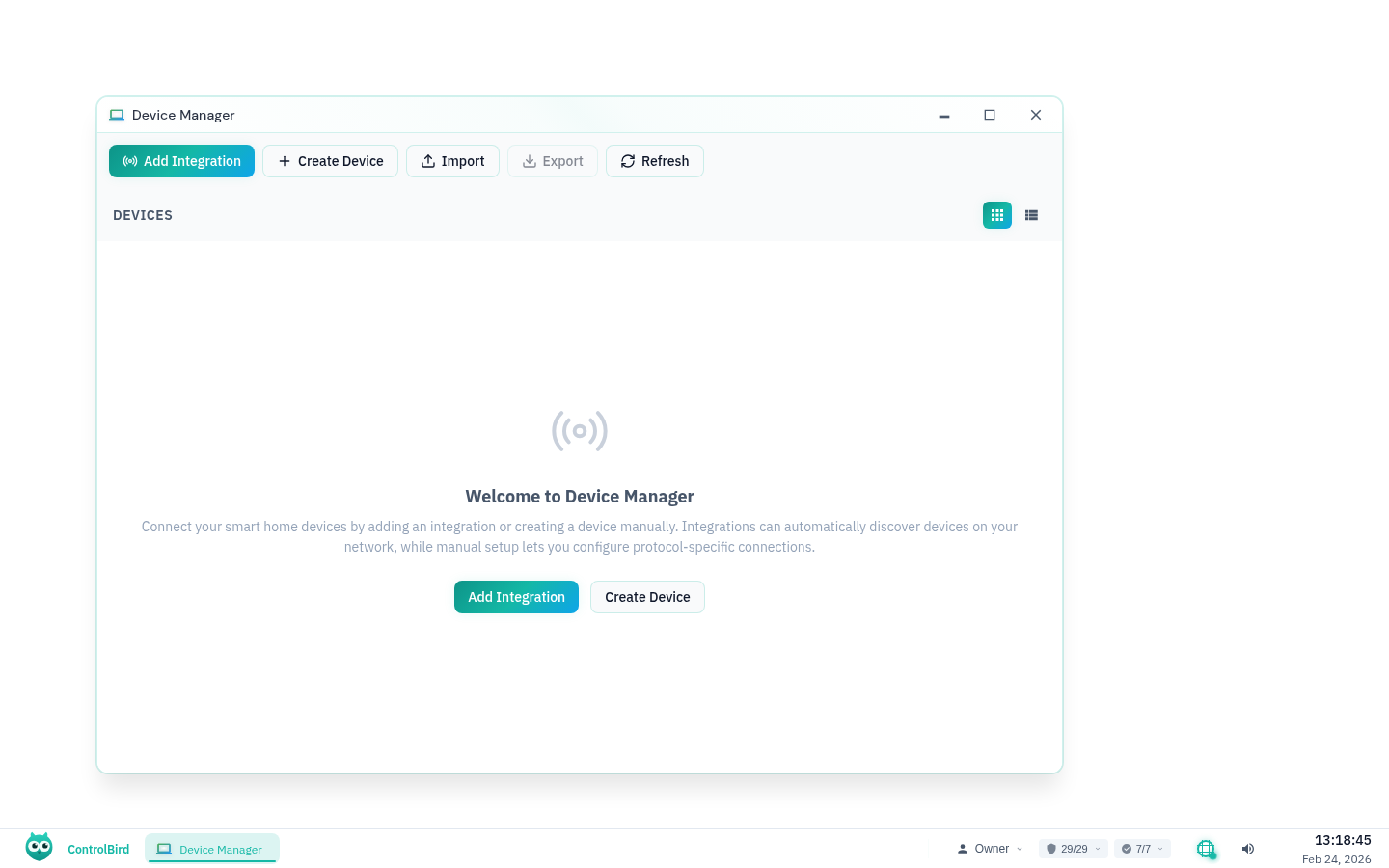
With the tunnel established, open ControlBird and click the logo in the taskbar, then select Device Manager. This app manages all your device connections and data mappings.
Supported Protocols
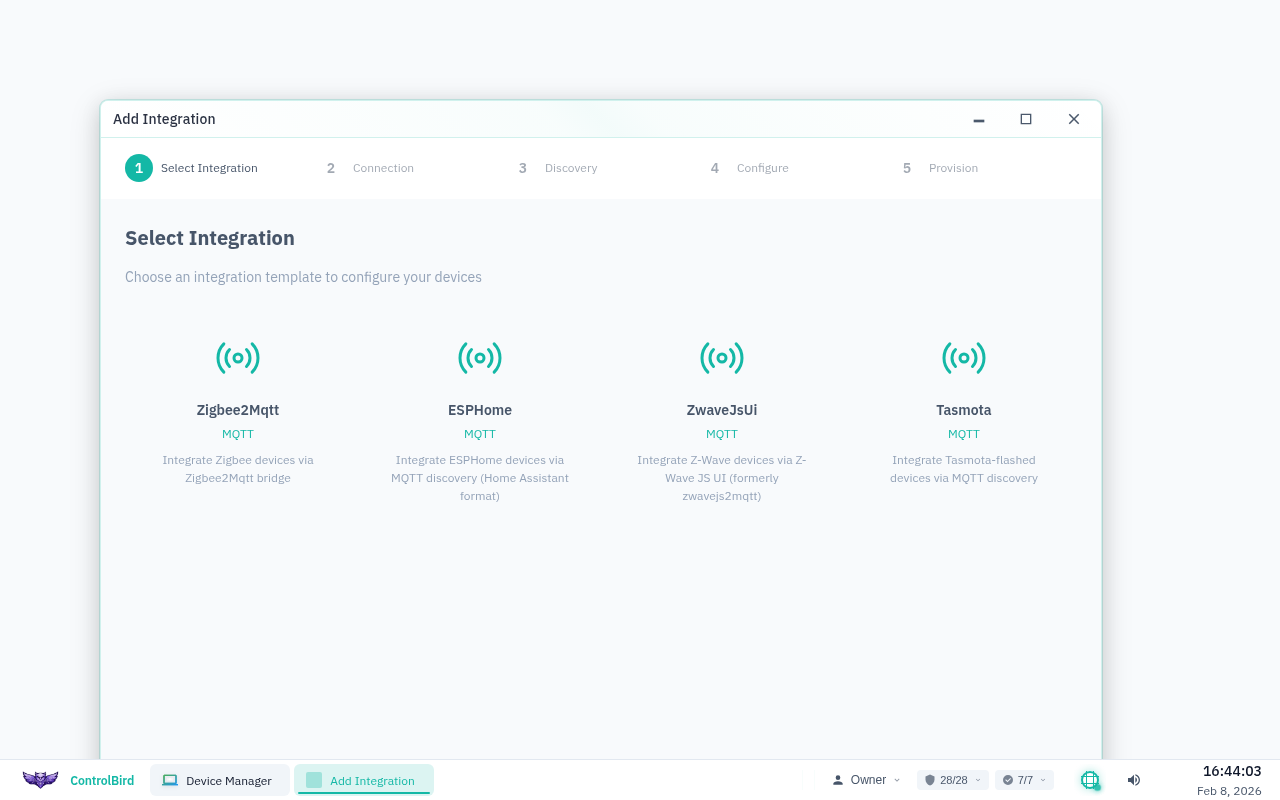
ControlBird supports multiple industrial and IoT protocols:
Step 4: Create a Controller
Click "Add Controller" and select your protocol type. We'll use Modbus TCP as an example.
Controller Configuration
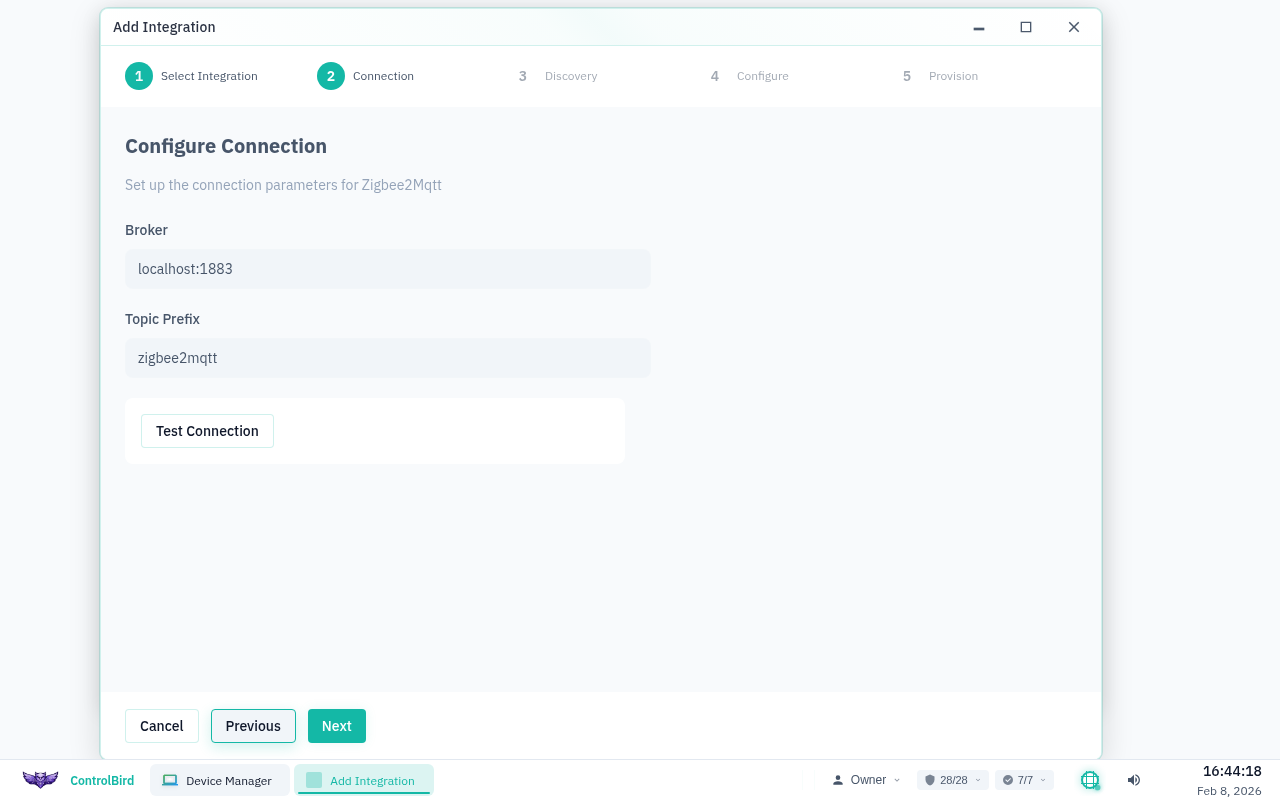
Since your tunnel forwards device ports to localhost on the node, configure the controller to connect locally:
| Field | Description | Example |
|---|---|---|
Name | A friendly name for this connection | Living Room Thermostat |
Host | Always localhost when using SSH tunnel | localhost |
Port | The port you forwarded in your SSH command | 502 |
Unit ID | Modbus slave address (usually 1) | 1 |
Poll Interval | How often to read data (milliseconds) | 1000 (= 1 second) |
Host Must Be localhost
When using SSH tunnels, always set the host to localhost, not the device's actual IP address. The tunnel makes remote devices appear as local ports on the node.
Connection Status
After saving, the controller will attempt to connect through your tunnel. Watch the status indicator:
Step 5: Create a Mapper
With the controller connected, add a Mapper to read specific data points. Click "Add Mapper" under your controller.
Mapper Configuration
Each mapper reads one piece of data from your device and stores it in ControlBird:
| Field | Description | Example |
|---|---|---|
Name | What this data point represents | Current Temperature |
Register Type | Modbus register type to read | Holding Register (HR) |
Address | Register address from device documentation | 100 |
Data Type | How to interpret the raw data | Float32 |
Target Entity | Where to store this value in the database | /Home/LivingRoom/Temperature |

Where Do I Find Register Addresses?
Register addresses come from your device's documentation (usually called a "Modbus register map" or "point list"). Search for "[your device name] modbus registers" or check the manufacturer's website. Common examples: temperature at register 100, humidity at 102, setpoint at 200.
Common Modbus Data Types
Step 6: Verify the Data
Once your mapper is active, you'll see live values in the Device Manager:

Confirm in Database Browser
Open the Database Browser and navigate to your target entity. You should see the field value updating at your configured poll interval:

Testing Your Setup
Change something on your physical device (adjust a thermostat, trigger a sensor) and watch the value update in ControlBird. This confirms the entire data pipeline, from device through tunnel to cloud, is working correctly.
Troubleshooting
SSH tunnel won't connect
If your tunnel fails to establish:
- Check the SSH host: make sure you're using the exact hostname from your node settings
- Verify your token: regenerate the token if needed and try again
- Check network restrictions: some corporate networks block outbound connections; try from a different network
- Check Docker logs: run
docker logs controlbird-tunnelto see connection details. If using manual SSH, add-vfor verbose output
Controller shows "Error" after tunnel connects
If the tunnel is up but the controller can't connect:
- Verify port forwarding: make sure the
TUNNELSport matches your controller's port setting - Check local device: confirm the device is reachable from your tunnel machine (try
nc -zv 192.168.1.100 502) - Look for port conflicts: the forwarded port might already be in use on the node
Tunnel disconnects frequently
For more reliable tunnels:
- Use the Docker image with
--restart alwaysfor automatic reconnection (recommended) - If using manual SSH, add
-o ServerAliveInterval=30to send keepalives - If using manual SSH, consider
autosshor a systemd service withRestart=always
I'm not seeing any data updates
If your device is connected but values aren't updating:
- Check that your mapper configuration points to valid registers/addresses
- Verify the data type matches what your device sends
- Try increasing the poll interval if your device is slow to respond
- Check tunnel latency: high latency may cause timeouts
Can I run the tunnel from a Raspberry Pi?
Yes! A Raspberry Pi makes an excellent tunnel gateway. Install Docker on your Pi, then run a single docker run command to set up a persistent, auto-reconnecting tunnel to all your devices. Any Pi model with Docker and network access will work.
How do I connect MQTT devices?
For MQTT, forward port 1883 (or your broker's port) through the tunnel, then configure an MQTT controller pointing to localhost:1883. The mapper uses topic subscriptions instead of register addresses.
Architecture Summary
Here's how data flows from your local device to ControlBird: